Your step-by-step guide to assembling and troubleshooting your custom PC.
Welcome To the PC Building Guide
Building your own PC can seem overwhelming, but it is a rewarding and educational experience that allows you to customize your machine to fit your specific needs.
This website aims to provide beginners with clear, step-by-step guidance on all aspects of PC building, from understanding components to assembling and troubleshooting your setup.
On this site, you will find detailed information about the essential components, practical assembly tips, and troubleshooting advice to help you overcome common issues.
Multimedia elements like images and audio instructions are included to enhance learning and make the process more approachable.
Gallery
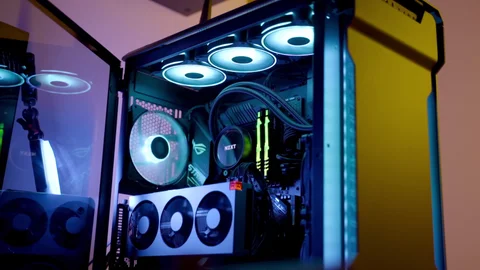
Gaming PC with a Liquid cooling system CPU.Example of a fully assembled PC showing key components.
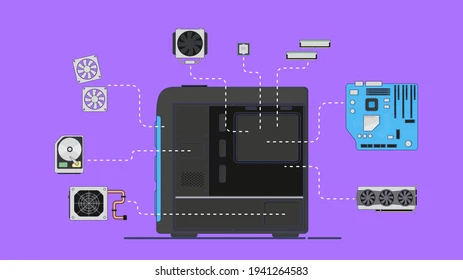
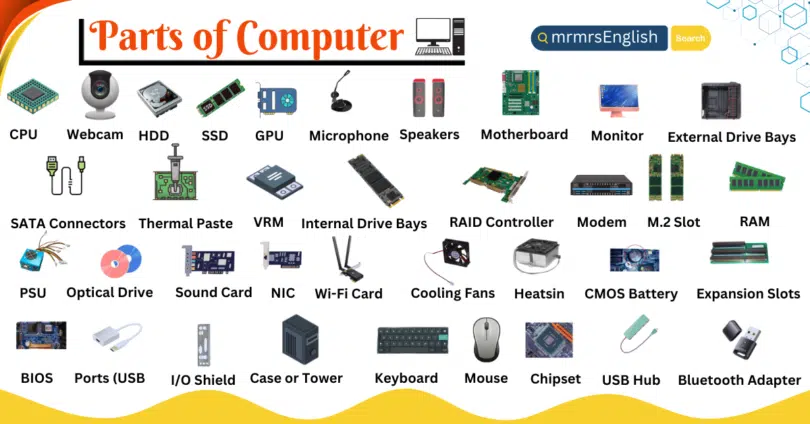
A personal computer is composed of several essential components, each responsible for specific functions. The motherboard serves as the main circuit board, connecting all parts of the system.
The CPU (central processing unit) is the brain of the computer, responsible for processing instructions. RAM (random access memory) provides temporary storage that the CPU can quickly access during operation.
Other key components include the power supply unit (PSU) which delivers power to the computer, storage devices like HDDs and SSDs which store your data, and the graphics card that handles rendering images and video.
Knowing the function and compatibility of each component is critical to building a successful PC tailored to your needs.
PC Parts
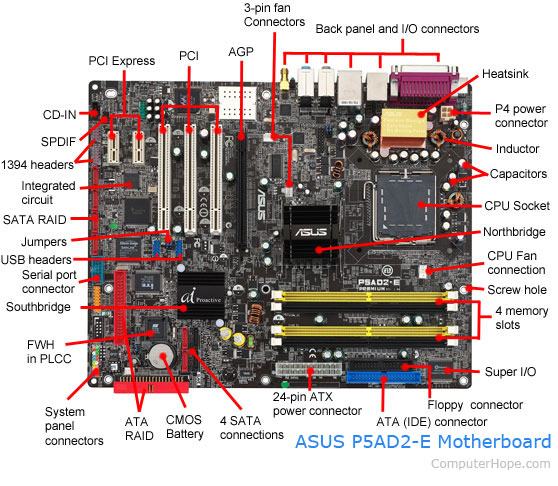
Example of all PC Parts and key components.Detailed view of an ATX motherboard layout.
Assembling a PC requires patience and attention to detail. Begin by preparing a clean, static-free workspace. Start with installing the CPU onto the motherboard, followed by attaching the CPU cooler.
Next, install the RAM sticks into their respective slots. Once the motherboard assembly is complete, carefully place it into the PC case and secure it.
Connect the power supply to the motherboard, CPU, and other components like the storage devices and graphics card. Double-check all connections and ensure cables are properly managed to maintain airflow.
Finally, power on the PC to test functionality before closing the case. Following these steps carefully will help ensure a successful build.
When building a PC, encountering problems is common but solvable. If your PC does not power on, first check power connections and ensure the power supply switch is turned on.
No display on the monitor may indicate an improperly seated graphics card or faulty RAM sticks. Removing and reseating components often resolves these issues.
Overheating problems can arise if the CPU cooler is not correctly installed or thermal paste is insufficient. Also, listen for beep codes during boot; they provide clues to hardware problems.
Following systematic troubleshooting steps will help you identify and fix most common hardware problems during your build.